Image PDF, text PDF or both? Check first, then start
Open the PDF in your PDF program or browser. Then search for a word you can see on the page, for example a name from the letterhead. Also try selecting and copying a line. If the search finds nothing and nothing can be selected, the page consists only of an image. That is exactly what text recognition is for. If, on the other hand, your PDF can already be fully searched and copied, you usually don’t need text recognition at all.
Why mixed pages are rejected
A typical example is a letter whose letterhead is real text in the PDF, while the actual letter below it is a scanned image. If the tool accepted such a page as a finished text page, the scanned part would end up without searchable text, and no one would notice. That’s why it rejects any PDF that contains even a single page with both selectable text and an image. This check is deliberately strict. It also applies to an ordinary text page with a logo, even though nothing would actually need to be recognized there. In addition, an existing text layer is never silently replaced or repaired, even if it is faulty.
Here’s how you can still move forward:
- If the affected pages are already searchable, such as a cover page with a logo, you can remove them from a copy. Or you can split the PDF so that only the pure scan pages are recognized. Afterwards, you can merge the parts again. Then check the search in the finished file.
- If a mixed page needs to become fully searchable, turn it into a pure image page. To do this, export the pages as JPG and combine the images back into a PDF. Then have this PDF recognized. Make sure the text on the images stays easy to read. The previously real text also becomes an image and is then recognized anew. So check it just like the rest of the text. This is also how you replace a faulty old text layer.
- If you still have the original on paper, a new scan as a pure image PDF is often the simplest route.
Make a scanned PDF searchable: step by step
- Select a PDF with “Choose file” or drop it into the field. Each run accepts exactly one file of at most 50 MiB and 20 pages.
- Under “Document language”, set the language the text is written in: German, English or German and English.
- Under “Output format”, choose between “Searchable PDF” and “Text file (TXT, UTF-8)”.
- Click “Recognize text”. On first start, the page loads its recognition data, which requires an internet connection. The pages are then recognized one after another. How long this takes depends on the number of pages and your device. You can stop at any time with “Cancel”. In that case no file is created, not even a partial one.
- Under “Notes on the result”, read whether any pages were carried over without recognition or were blank. Then download the file with “Download”.
- Open the saved file and check it as described below before you pass it on or delete the original.
Your original file stays unchanged; the result is always a new file. You don’t need an account or a payment for this process. Use “Reset” to start with the next PDF.
Searchable PDF, text file or Word document?
Text recognition makes text findable, but not automatically editable. Which file you need depends on what you plan to do with it afterwards.
Because the page image stays unchanged, a searchable PDF looks exactly like the scan. That is true even if the invisible text layer contains some words incorrectly. Only the search and the copied text show you whether the recognition is correct. A searchable PDF is also neither automatically accessible in the sense of PDF/UA nor an archival PDF under PDF/A. This tool creates neither.
Example: A scan becomes a searchable PDF
A self-created example: A one-page scanned PDF consists only of an image and contains no selectable text. After text recognition, the PDF has a text layer. You can search it and copy text.
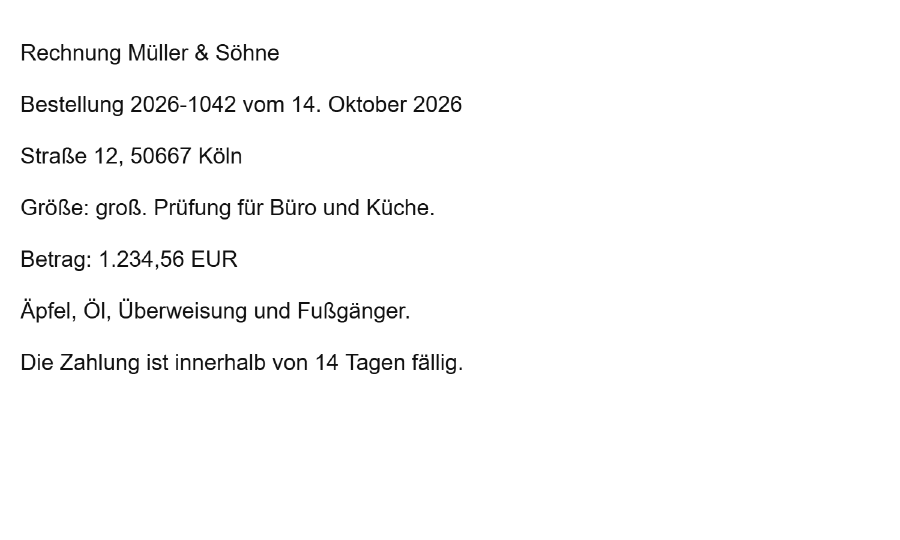
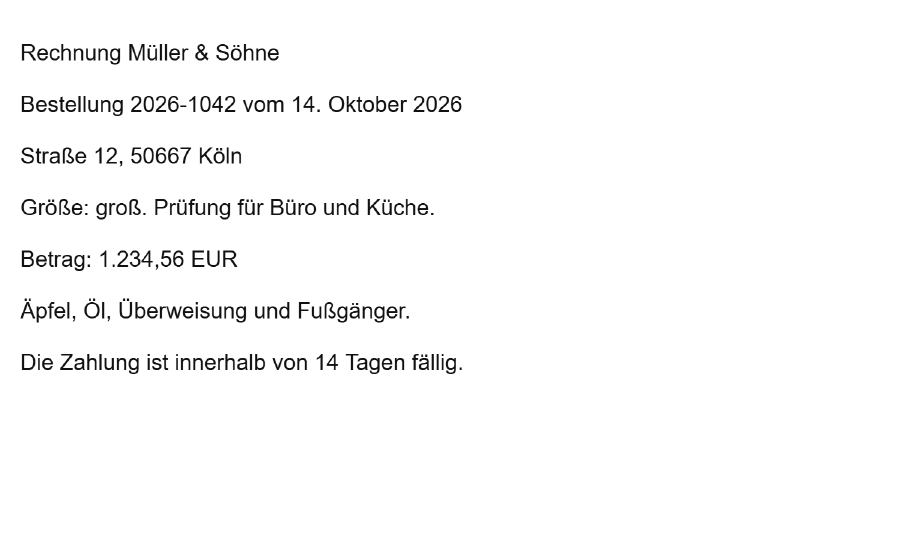
The illustrations are image excerpts of the pages. You can only search and copy in the downloaded PDF or in the text extract.
Search term Müller
Recognized text from the searchable PDF
Rechnung Müller & Söhne
Bestellung 2026-1042 vom 14. Oktober 2026
Straße 12, 50667 Köln
Größe: groß. Prüfung für Büro und Küche.
Betrag: 1.234,56 EUR
Äpfel, Öl, Überweisung und Fußgänger.
Die Zahlung ist innerhalb von 14 Tagen fällig.
Open the searchable PDF in your PDF app. Search for “Müller” there, or select the text to copy it. The scanned source file contains no text that a search could find.
Both pages look the same. The difference lies in the file: the searchable PDF also contains an invisible text layer. A search for “Müller” finds the word, and you can select and copy the text.
Text recognition can misread words or numbers. This example says nothing about your own documents. In your result, check names, amounts and umlauts in particular.
Choose the language: German, English or both
The language setting tells the recognition which words and characters to expect. For German texts with ä, ö, ü and ß, choose German. If a document contains both languages, such as a German letter with English technical terms or an English address, choose German and English. The tool is not designed for other languages.
The language choice does not translate anything. The text is recognized in the language it appears in on the scan. Recognition is intended for printed text; it does not reliably recognize handwriting.
Check the result: names, numbers and umlauts
Text recognition derives letters from pixels. Errors can occur in the process, especially with digits, proper names and characters that look alike. For important documents, a quick check is therefore worthwhile:
- Open the saved PDF and use Ctrl+F (Mac: Cmd+F) to search for a few words you see on the scan. Ideally, use a name, a word with an umlaut or ß such as “Straße”, and a number.
- Select a paragraph, copy it into a word processor and compare it with the scan. Are names, amounts such as 1,234.56, dates, file reference numbers and umlauts correct? Were similar characters such as 0 and O or 1 and l mixed up?
- With columns and tables, pay attention to the order. Columns and table cells are not reconstructed. In the copied text, they may therefore be arranged differently than on the page.
- If you chose a text file, check the same spots directly in the file.
You can’t correct errors in the recognized text in this tool. For important details, rely on the visible page image, not on the copied text.
Better original, better recognition
Many errors arise during scanning, for example from too low a resolution, pages fed in at an angle, weak contrast, stains or very small text. So scan important documents as straight, sharp and high-contrast as possible. For normal font sizes, about 300 dpi is sensible. Skewed pages are not automatically straightened here. If a page is sideways or upside down, rotate it beforehand so that the text is displayed upright. The English-language guide to image quality for text recognition explains how resolution, skew and image noise affect recognition.
Limits and messages: how to move forward
There is no queue for multiple files. You also can’t select individual pages for recognition; all pages of the PDF are always processed. The table shows when a file is rejected or a notice appears, and what you can do then.
Does the PDF stay on your device? And does it work without internet?
Your PDF is processed in this browser and not sent to a server. For text recognition, the page downloads only its program and the data for the selected language, and it does so from this website itself, not from third-party services.
That’s why you need an internet connection at startup, because no file can be processed without the recognition data. On a later visit, too, the page may need to load this data again. Starting entirely without internet is not intended and is not guaranteed.
The page on security and file processing explains how the website generally handles your files.