How to convert your PDF to a DOCX file
- Check whether the text in your PDF can be selected: open it in a PDF program and drag the mouse over a few words. If only a frame around the whole page is selected, or nothing at all, it is a scan. In that case, the section on scanned PDFs below will help.
- Click “Choose file” or drag the PDF into the drop area. Exactly one file is converted per run.
- Click “Convert to DOCX”. Use “Cancel” to stop processing; no file is created in that case.
- Under “Result”, read the “Notes on the result”. They tell you, for example, whether images were left out, tables were recreated or two columns were taken over one after the other.
- Click “Download” to save the DOCX file.
- Open the saved file and check it as described below before you pass it on or delete the PDF.
Your PDF is not changed in the process; the DOCX file is a new, separate file. The “Pages” figure in the result refers to the PDF. In Word, the page count may differ because the text is reflowed. Use “Reset” to clear the tool for the next file.
Editable text instead of a page image
Some conversions simply place each PDF page as an image in a Word document. That looks like the original, but individual words can neither be selected nor changed. This tool produces the opposite: real paragraphs and, for simple numeric tables, real Word table cells. Page images are not inserted.
The reason a new document is created lies in the PDF format. A PDF mainly stores which text is located where on the page, but not which lines form a paragraph or which values form a table row. These relationships have to be worked out anew in every conversion to Word, which is why the appearance can change. Microsoft explains this for Word’s own way of opening PDFs under Opening PDFs in Word.
How to check whether the file is really editable
A glance at the first page is not enough for this. Test the following in the saved file:
- Select a word and type over it.
- Change a value in a table cell if the file contains a table.
- Add a sentence to a paragraph and check whether the following text moves along.
- Save, close and reopen the file. Your changes must still be there.
Layout, fonts, tables and images: what is carried over
The text is carried over, not the design of the page. Here is what that means for the individual components of your PDF:
When the appearance has to match exactly
If you need the original page appearance, for example for a letterhead, a flyer or pages with many graphics, converting to new flowing text is the wrong approach. The best option is the original file from which the PDF was created. Ask the sender for it. If you only want to show a page unchanged, you can save it as JPG and insert it as an image, but the text is then not editable. Word can also open PDFs itself; according to Microsoft, the appearance may change in that case too.
Example: A PDF becomes an editable DOCX file
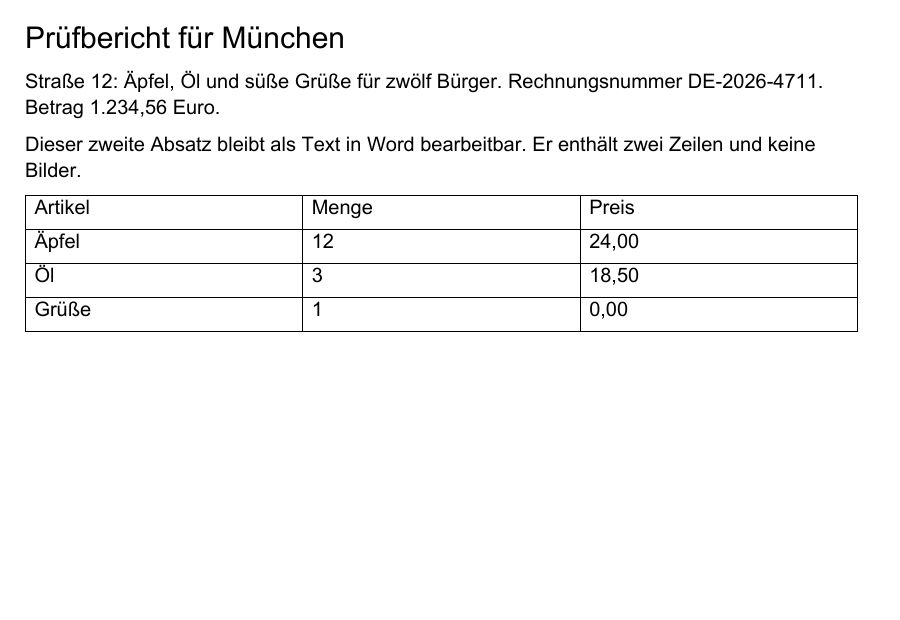
A self-created example: A two-page German PDF with a table was converted into a DOCX file. Each figure shows only a section of the first page.
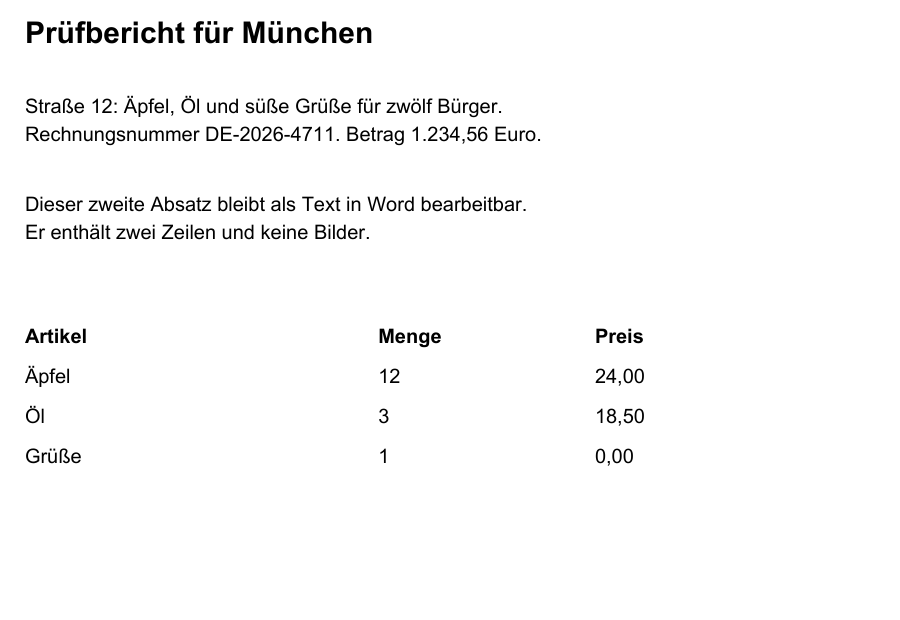
After: DOCX result in the LibreOffice preview, excerpt from page 1
 Download the sample's converted DOCX file
The illustrations show only an excerpt of the first of two pages. Download both files to compare them in full.
Text excerpt from the DOCX file for selecting and copying
Prüfbericht für München
Straße 12: Äpfel, Öl und süße Grüße für zwölf Bürger. Rechnungsnummer DE-2026-4711.
Betrag 1.234,56 Euro.
Dieser zweite Absatz bleibt als Text in Word bearbeitbar. Er enthält zwei Zeilen und keine
Bilder.
Artikel Menge Preis
Äpfel 12 24,00
Öl 3 18,50
Grüße 1 0,00
In the DOCX file, the content is available as editable text and the table as a real table. In this example, umlauts as in “München” and numbers such as “1.234,56” were preserved. However, the lines wrap differently than in the original, and the table was rebuilt with border lines.
The preview comes from LibreOffice, not Microsoft Word. Which font is displayed depends on the fonts on your device. Layout and page breaks may differ from the original.
Scanned PDF: recognise text first
To a computer, a scan is a photo of the page. It contains no text that could be selected. This tool only reads existing text and does not recognise lettering in images. If even a single page consists solely of an image, the entire conversion therefore stops, even if the other pages contain text. Here is how to proceed:
- Make the PDF searchable with text recognition (OCR). It processes up to 20 pages per run and recognises German, English or both.
- Check the recognised text, especially names, numbers and amounts. Otherwise, text recognition errors end up unchanged in the DOCX file.
- Then select the searchable PDF here and convert it.
This also applies to PDFs that already have a text layer, for example ones coming directly from a scanner. This tool takes over the existing text as it is and does not check whether it was recognised correctly. If the result reports that images were not carried over, check whether any of them contained text. Otherwise, a scanned section on an otherwise digital page will be missing from the Word file. Text recognition does not process such mixed pages either, so you will then have to add that section yourself.
Checking the result: what matters for German documents
For German documents, special characters, number formats and identifiers matter most. In a German sample document, entries such as “Straße 12”, “Äpfel, Öl und süße Grüße”, the amount “1.234,56”, the invoice number “DE-2026-4711” and the easily confused sequence “0 O 1 l I” arrived unchanged in the DOCX file. Whether this also applies to your PDF depends on how its text was stored or recognised. Therefore, compare the result with the original:
- Names, streets and places with ä, ö, ü and ß
- Amounts with a thousands point and decimal comma, as well as dates
- Invoice, customer and file reference numbers in which 0 and O or 1, l and I can be confused
- the order of the sections, especially on two-column pages, footnotes and footers
- recreated tables row by row: is every value in the correct cell?
- content that was present in the PDF as an image, graphic or comment and is therefore missing
If part of the text cannot be read out as legible characters, the conversion stops with a message. Recreating the PDF from the original program usually helps in that case. Once the file has been fully edited and is to become a PDF again, save or export it directly as a PDF in Word or your word processor. Convert Word to PDF is only an option if your document consists of a single Word section. Results from multi-page PDFs contain a separate section for each page; this converter does not accept such files.
Which PDFs can be converted
Per run, you can convert one PDF with up to 50 MiB, 100 pages and 300,000 characters of text. The text must run horizontally and from left to right, as is usual in German documents. The result is always a DOCX file; the older DOC format is not produced.
You don’t need an account for the conversion, there is no payment step in the tool, and you don’t install anything; the conversion runs in a current browser. You can find the currently applicable conditions under Prices and limits.
Does the PDF stay on your device?
For the conversion itself, yes. The PDF is read in your browser’s memory, and the DOCX file is also created there. The document is not sent to a server for this. However, your browser loads the web page and the tool’s program components from this website in the normal way. You therefore need an internet connection when you open the page; conversion entirely without a network connection is not guaranteed.
Via “Download”, the DOCX file is saved wherever your browser stores downloads. If you are working on a shared device, delete the copy after use. The Security page explains how file processing works on this website. Information on how data is handled can be found in the privacy policy.