What does lossless PDF compression mean?
Lossless means that after opening, text, lines and images are exactly the same as before. Only the way this content is stored in the file changes. A PDF consists of many PDF objects such as pages, fonts, images and references. It also contains data streams, which hold the page content, for example. Some of these parts are uncompressed or stored inefficiently. They can then be packed more tightly without any loss of content, for example by combining many objects in shared object streams. QPDF, the program our compressor is built on, describes these techniques in its documentation under QPDF: Optimizing File Size.
If you want to know whether nothing is really lost, it helps to distinguish three properties:
- Lossless: The content stays the same after unpacking. The file itself still consists of different bytes and has a different checksum.
- Byte-identical: The file is exactly the same. This is only the case if nothing at all was changed, for example because no smaller valid version was found and the original was therefore kept.
- Visually unchanged: An image that has been re-encoded as JPEG can look the same in normal viewing even though image data has been lost. That is lossy compression, even if you don't notice any difference.
So can a PDF get smaller without looking worse? Yes, if it contains superfluous or inefficiently stored data. How much difference that makes depends entirely on the document. Some files shrink noticeably, while files that are already well optimized shrink hardly or not at all. With image-heavy PDFs, significantly larger savings often require re-encoding the images. That is lossy, even if the result looks good.
If image quality must remain untouched, choose the option “Lossless optimization” under “Method”: Try the compression mode. The PDF is processed in your browser. Afterwards, the tool shows you the original, the result and the savings in bytes. If “Saved” shows a value above zero, the file has become smaller without the images being intentionally changed. If it shows zero, you have the unchanged original.
What do the three methods change?
All three methods first create a losslessly optimized version. “Balanced” and “Smaller file” also try a version in which suitable images are re-encoded as JPEG. Each attempt starts from the original and never from the result of a previous attempt. As a result, JPEG losses don't stack up. Only a valid version that is actually smaller than the original is kept. Without a target size, that is the smallest of these versions.
With “Set target size”, the series of attempts ends as soon as a version reaches the target. If the lossless version already does this, the images remain untouched, even if you chose “Balanced” or “Smaller file”. The numbers 80, 65 or 40 are levels on the JPEG quality scale, which goes up to 100. They are not percentages of how much of the image remains. The lower the level, the more likely typical artifacts are to appear: soft or frayed edges, block patterns in uniform areas and color fringes around text in the image.
Only embedded images that the tool supports and that reach a minimum size are re-encoded. Very small graphics and so-called inline images stay as they are. Not every image format in a PDF is covered. Only the result will show you whether your images are affected.
What compression means for different types of content
What “preserving quality” means depends on what your PDF consists of:
In the JPEG methods, a digitally created application with a photo will therefore lose quality only in the photo, if anywhere. With a scanned certificate, on the other hand, everything is an image. In that case, every JPEG level also affects the text.
Does the compressor change the DPI?
No. The images keep their pixel dimensions and their position, and the page size stays the same as well. The effective resolution therefore remains unchanged. Effective resolution is the number of pixels per inch on the page. The JPEG methods only change how these pixels are stored, not how many there are. That is why the compressor has no DPI setting.
If you actually need fewer pixels, you have to start at the source. This applies, for example, when a scan was created at a very high resolution. Starting at the source means rescanning or reducing the image files before you create a PDF from them. You can calculate how many pixels a particular print size needs at a desired resolution with the DPI calculator.
Section comparison: original and three methods
A specially created sample document with test text and test graphics, not real documents. It was compressed with each of the compressor's three methods. Choose a variant and compare the same section with the original.
Scroll in either image to move the magnified section. When an image has focus, you can also use the arrow keys, and both images move together.
Original
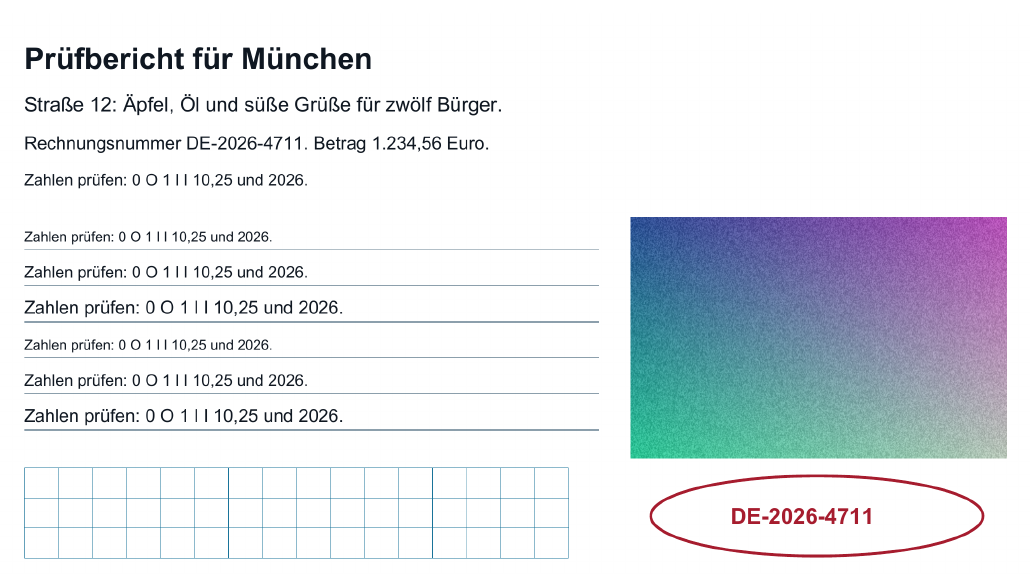
Unchanged source file as the basis for comparison.
Lossless
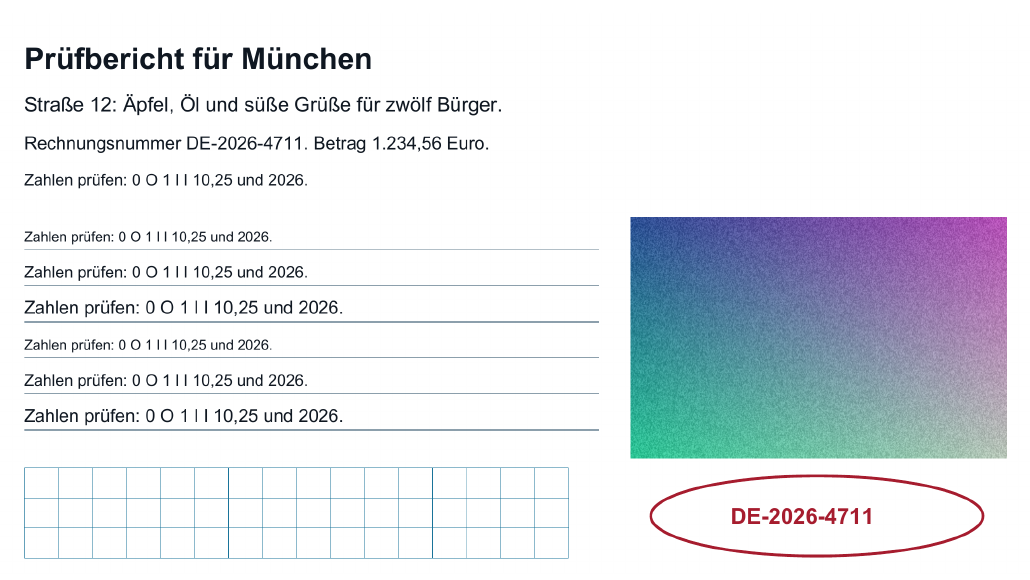
Only the PDF's internal structure is optimized; images are not re-encoded.
Balanced
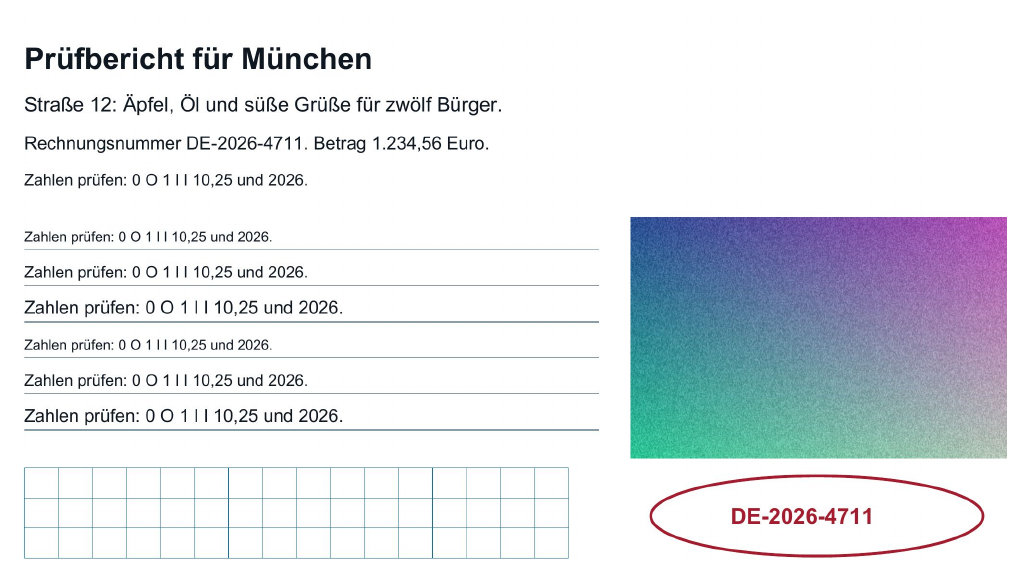
Images may be re-encoded as JPEG. Pay attention to fine lettering, lines and the texture in the raster image.
Strong
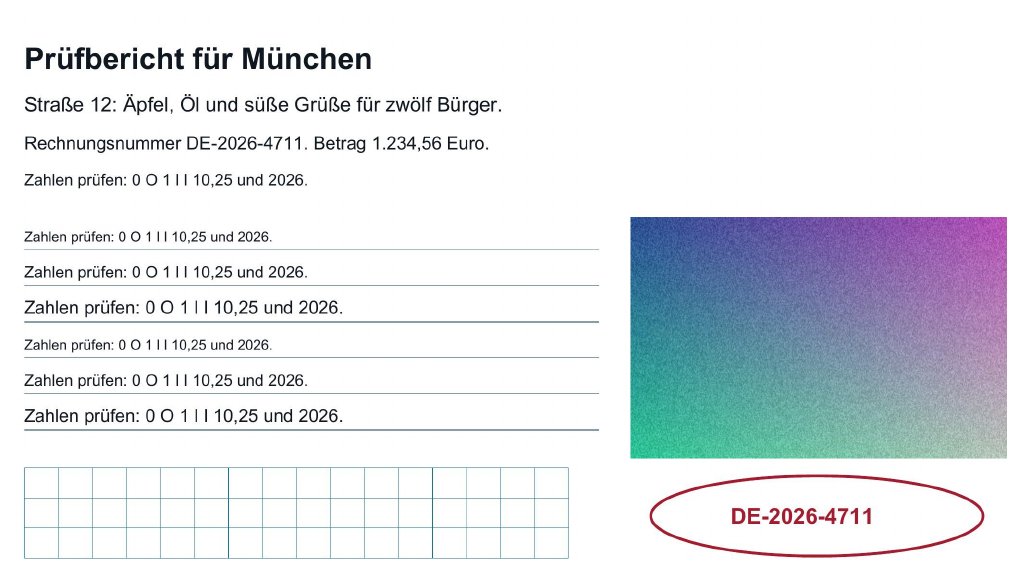
Stronger compression in which images may be re-encoded as JPEG. Compare especially in the detail view.
| Variant | Reference (bytes) | Variant (bytes) |
|---|---|---|
| Original | 1,105,858 | 1,105,858 |
| Lossless | 1,105,858 | 1,099,490 |
| Balanced | 1,105,858 | 251,270 |
| Strong | 1,105,858 | 197,760 |
The same page section of the sample document, generated from the PDFs that were actually saved.
A similar-looking section doesn't prove that text, images and features are fully preserved. Download the PDFs and check the whole file. With your own PDF, the size and result may differ.
Check quality at critical spots
A smaller file only helps if everything the recipient needs is still there. This involves two different things. The first is how the pages look. The second is what the document can do: search, text selection, links and form fields. A preview image or screenshot only shows the first.
For each version, the tool checks whether the file is valid and whether the page count and the number of form fields and links stay the same. This count is a rough check of scope and basic structure. It does not show whether every single field with its content and every link is still present and works as before. It also can't tell you whether a small stamp is still legible. Here is how to check:
- Look at the comparison view of the original and the result in the tool and page through the document.
- Download the result and open the saved file in your PDF program. What matters is the file you will actually send, not the preview.
- Open the original next to it and set both to the same zoom level, for example 200 percent. Details can only be compared fairly at the same scale.
- Go through every page, including attachments and back pages.
- Take a close look at the critical spots listed in the table below.
- Finally, test the functions that matter for your document.
Does text remain selectable and searchable?
Compression does not convert pages into images. Text that was stored as text in the original does not become a mere image, so it generally remains selectable and searchable. You rely on this when sending the file, so a quick test with a known phrase is still worthwhile.
Conversely, compression does not make a scan searchable, because no text recognition (OCR) takes place. If a scan already has an OCR layer, that layer is preserved, along with any recognition errors it already contained. Legibility and searchability are therefore two separate checks. A page can look razor-sharp and still return nothing in a search. And after a strong JPEG level, search can still work even though the text in the image has become harder to read. It is best to search the original first. If the search finds nothing there, the problem is not caused by compression.
Check certificates and attestations carefully
With certificates, everything often depends on individual characters: grades, dates, names and reference numbers. Use the original as a reference and compare exactly these spots at the same zoom level on every page of the saved file. If the certificate was scanned, stamps and handwritten signatures are part of the page image and change along with it in the JPEG methods. Afterwards, a colored stamp should still be recognizable in its color and have a legible inscription.
For documents like these, start with lossless optimization. If that is not enough and you choose a JPEG method, check the new file completely again. A check of an earlier version does not apply to the new one. The recipient determines which requirements apply. uni-assist, for example, requires complete and clearly legible scans for uploaded documents (Uploading documents at uni-assist, as of October 2026). The guide Reduce application PDF size describes how to compile and reduce complete application documents.
Why can't every PDF be reduced significantly?
Lossless optimization only saves space where the file wastes it internally, for example through uncompressed data streams or inefficiently stored objects. The JPEG methods can also reduce image data, but only for suitable images and only if the new version actually turns out smaller. Typical reasons for small or no savings:
- The PDF was already optimized when it was created, and its data streams are already compressed.
- It contains mostly text and vector graphics. This kind of content takes up little space and gives the JPEG methods nothing to re-encode.
- The images are already heavily compressed JPEGs. Re-encoding them may then save very little or even make them larger. The tool discards such versions.
- The images are too small, are stored as inline images or are in a format that is not re-encoded.
Why does the lossless PDF barely get smaller?
Lossless optimization only uses the room for compaction in the file's structure. It does not change the images themselves. In an image-heavy PDF, most of the bytes are usually in the images. A small saving is the expected result here, not an error.
If the tool does not find a smaller valid version, it keeps the original, and “Saved” shows 0 bytes. That is also a valid result. A file that cannot be processed at all is a different case, for example because the file is encrypted. Small differences easily disappear when sizes are rounded to megabytes. So look at the byte values:
A target size is also an attempt, not a promise. The tool works through the levels of the selected method and shows you whether the target was reached. Reduce PDF to a target size explains what the individual target states mean.
Don't keep feeding a result from “Smaller file” back in to shrink it further. If the images are re-encoded as JPEG again, new losses are added to the previous ones. Instead, start from the original with a stronger method or start at the source. You can look for the cause systematically with the guide Why the PDF won't get smaller.
When is another approach better?
Sometimes lossless optimization is not enough, and the JPEG levels visibly cost detail. The compressor does not downsample images, so their pixel dimensions stay the same. A step at the source can help if the PDF contains scans or photos with more resolution than your purpose requires. The same applies to color pages where grayscale would be enough. If the recipient accepts multiple files, splitting is another option.
Rescan or reduce images beforehand
If you still have the paper document, a new scan with a suitable resolution and color mode can produce a smaller file that is still easy to read. Only switch to grayscale if color carries no information. Color does carry information in a colored stamp, for example. The guide Change scan settings deliberately shows how to do this. If the PDF consists of photos and you still have the image files, you can save them with smaller pixel dimensions in an image editor. You can then create a new PDF from them with Convert images to PDF. In any case, keep the original until the new version has been checked and has reached the recipient.
Several files instead of one heavily compressed file
If the recipient allows multiple files, it can be better to split the PDF than to compress the images heavily. This only works if the total size and number of files still meet the recipient's requirements afterwards. Together, the parts can be larger than the original, because shared content ends up in several of the part files.
Digital signatures and protected files
A scanned signature is part of the image and is treated like the rest of the page. A digital signature, on the other hand, is a cryptographic feature of the file. It can be used to check whether the document has been changed since it was signed. Rewriting the file can jeopardize this check, so the compressor does not process digitally signed or certified PDFs at all. The same applies to encrypted or password-protected files. If a signed PDF is too large, ask the issuer for a smaller version. If you are signing the document yourself, reduce it before you sign it.